
Most smart home problems we’re called out for aren’t really smart home problems. A light that won’t respond, a camera that drops out every evening, a speaker that skips during dinner: more often than not, the cause is the network underneath. The home network is now the one system everything else depends on, so it deserves the same planning as plumbing or electrical.
This is the checklist we use when we design or fix a network in a Los Angeles home. Some of it you can do this afternoon. Some of it is easiest during a remodel, while the walls are open.
Key takeaways
- Wire the access points. Mesh is fine where a cable can’t go, but wired backhaul is faster and more stable.
- Put cameras, TVs and smart devices on their own network, separate from your computers and phones.
- Use WPA3, change default passwords, turn on automatic updates and replace hardware that no longer gets them.
- Give the core equipment a proper home: ventilated, on battery backup, and easy to service.
1. Start with cable, not more Wi-Fi
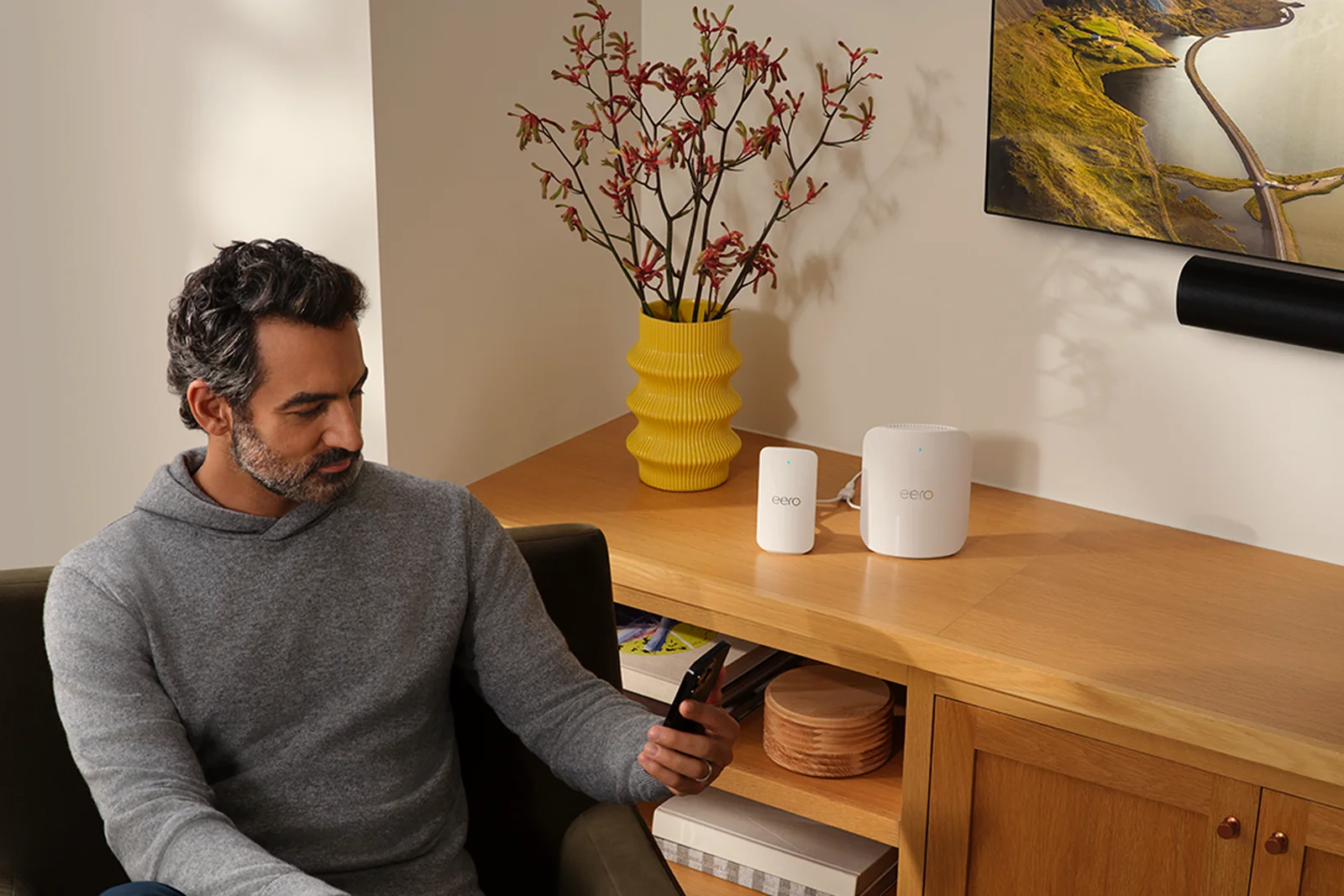
A common reaction to a dead spot is to add another extender or mesh node. That often makes things worse. A wireless mesh node has to talk to the router over the same air your phones and laptops use, so every hop eats into the speed and adds delay. Ubiquiti’s own guidance is that wired uplinks give the best throughput and stability, and wireless meshing should be kept for spots where cabling isn’t practical (Ubiquiti). eero, which sells mesh systems, also supports connecting its units with Ethernet so they use a wired backhaul (eero).
In practice that means:
- Ceiling-mounted access points in the main living areas, each on its own Ethernet run back to a central switch.
- Cat6 or better to every TV location, office, access point and camera position. Cable is cheap; opening a finished wall later isn’t.
- Existing coax as a fallback. In a finished home with no Ethernet, MoCA adapters can carry network traffic over the TV coax that’s already in the walls, which is often more reliable than a wireless hop.
- Mesh only where needed, such as a detached studio or a pool house, and preferably with a single hop.
Hillside homes in L.A. make this especially important. Thick walls, split levels and long, narrow floor plans block Wi-Fi far more than a typical tract house.
2. Give the equipment a real home
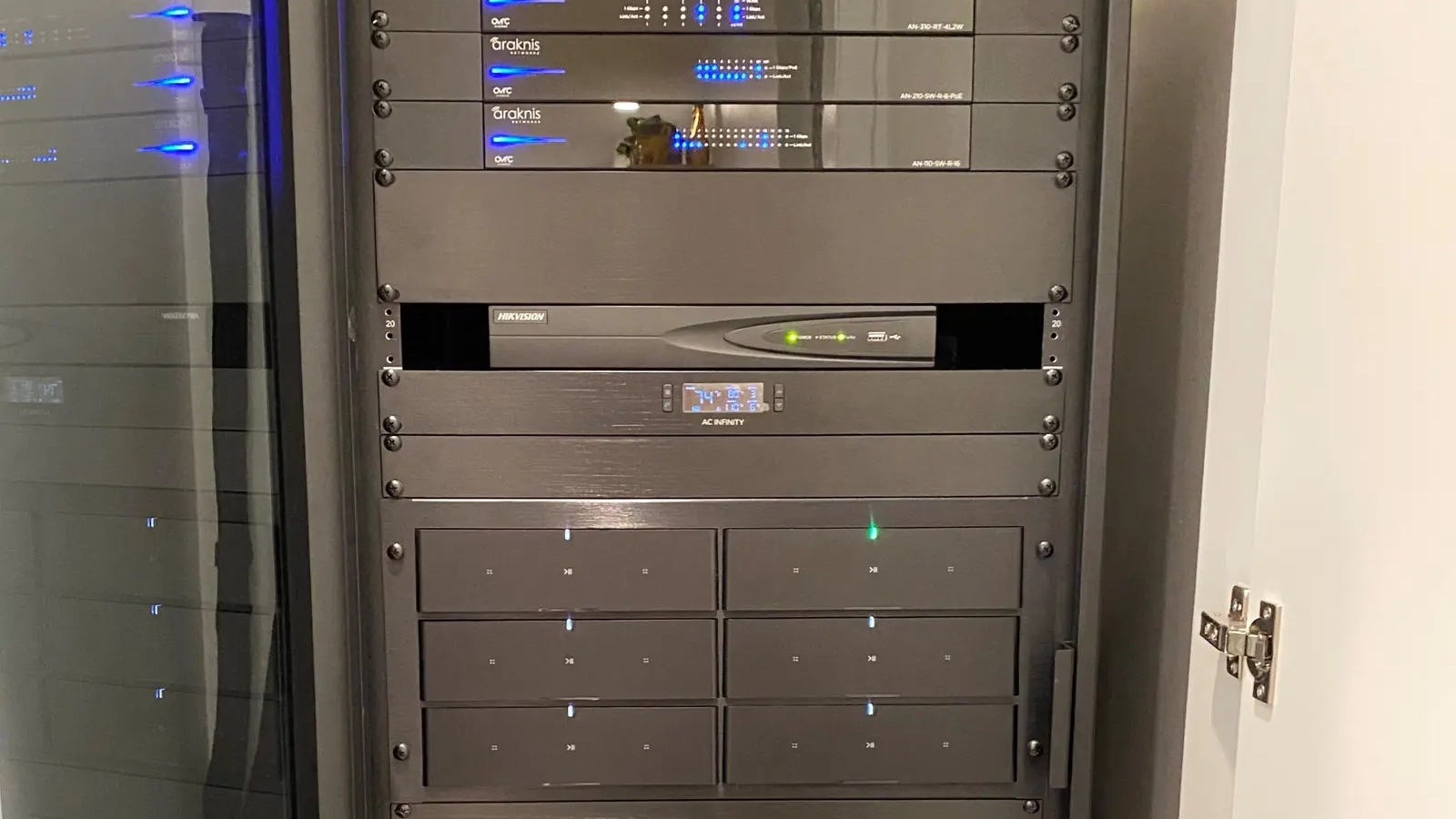
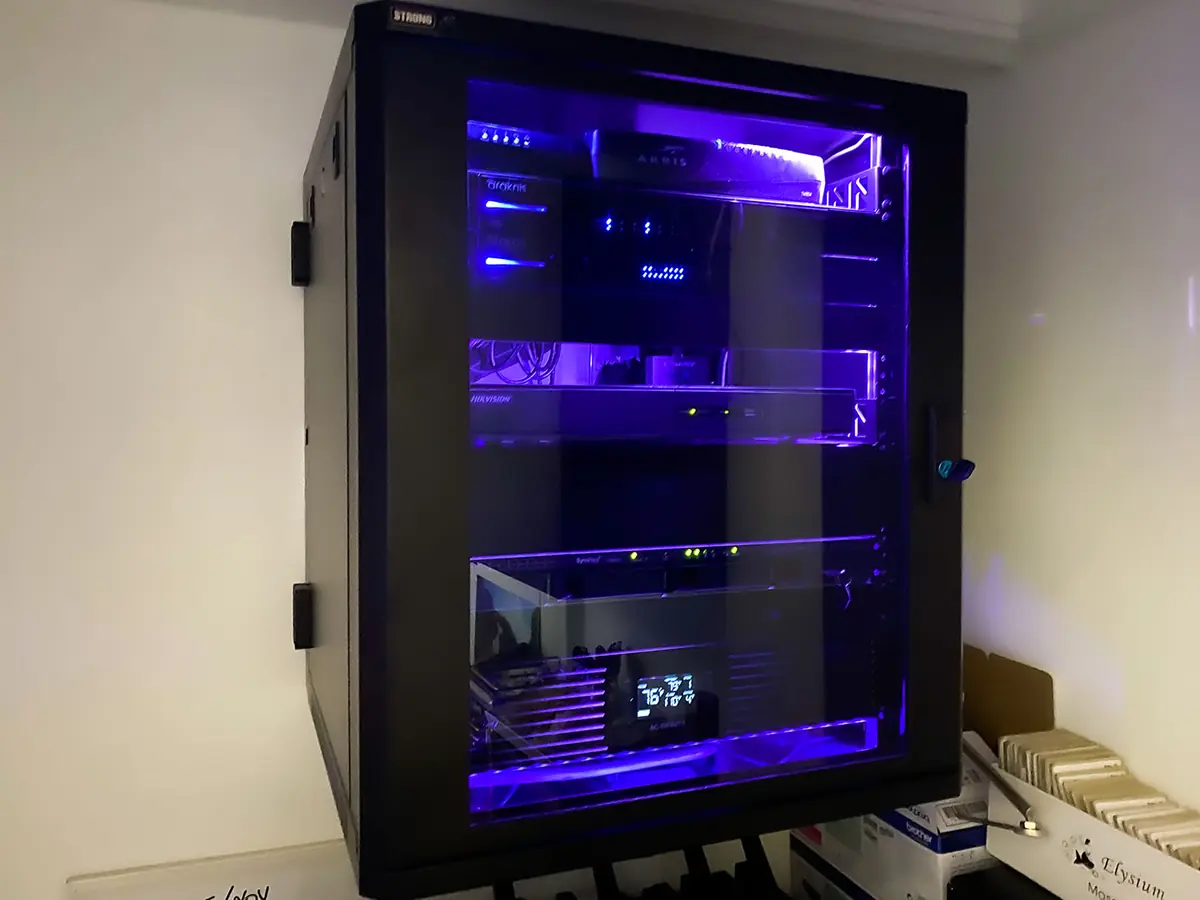
The router, switch, modem and any camera recorder need a dedicated spot: a closet or small rack with airflow, power and room to work. Avoid the hot garage wall and the bottom of a media cabinet with no ventilation. Three details matter most:
- Battery backup (UPS). It rides through short outages and lets equipment shut down cleanly in long ones. Cameras and alarms stay online through brief power blips.
- Labeling. Every cable labeled at both ends, and a simple map of what goes where.
- A lock. If cameras record to a device in the rack, the rack is part of your security system.
3. Separate your devices into networks
A modern home has dozens of connected devices: TVs, speakers, cameras, thermostats, doorbells, appliances. Many get fewer security updates than your phone or laptop. Both NSA and CISA guidance recommend reducing the attack surface of a home network, and the NSA’s 2023 home network guide recommends separate networks for primary devices, guests and smart devices (NSA, PDF).
A practical layout for most homes:
- Main: phones, computers, tablets.
- Smart home: speakers, TVs, lighting hubs, thermostats.
- Cameras: ideally on their own segment, with access only from the recorder and the apps you use.
- Guest: internet only, with no access to anything else in the house.
One caution: some systems need devices on the same network to find each other. Sonos, AirPlay and Apple Home are the usual examples. Splitting them up without planning for that is how people end up with a “secure” network where the speakers can’t be found. Segmenting well is about grouping the right devices together, not maximum separation.
4. Lock down the basics
These steps come straight from CISA’s home network guidance (CISA) and take minutes:
- Use WPA3 encryption where your devices support it.
- Change the router’s default admin password and the default network name. Don’t use your family name or address as the network name.
- Disable WPS, the push-button or PIN pairing feature, which has a known design flaw.
- Turn off UPnP unless something you rely on needs it, and turn off remote management of the router.
- Keep firmware updated, automatically if your router allows it. If the manufacturer no longer supplies updates, the NSA recommends replacing the device.
- Check the device list now and then for anything you don’t recognize.
5. Plan Wi-Fi for how you live
Good Wi-Fi is about coverage and capacity, not one big router with tall antennas. A few rules of thumb we use:
- Put access points where people are: the kitchen, family room, office and primary bedroom, not in the closet where the internet line comes in.
- Don’t turn every access point up to full power. Phones stay connected to a distant access point when a closer one is available, which feels like “bad Wi-Fi.” CISA also notes that reducing signal strength limits how far your network reaches outside the home.
- Wire anything that doesn’t move. TVs, game consoles, streaming boxes, desktop computers and home hubs work better on cable, and it frees up Wi-Fi for phones and laptops.
- Cover the outdoors on purpose. Patios, pools and gates need outdoor-rated access points. Don’t count on Wi-Fi leaking through a window.
6. Plan for outages and support
Ask yourself what happens when the internet goes down. If cameras record only to the cloud, there’s no footage. If your lights or locks depend on a cloud service, they may stop responding remotely. A good design keeps the important things working locally: local video recording, a home hub on Ethernet, and alarm communication with a cellular backup. For homes where working from home matters, a second internet connection with automatic failover is worth considering.
Finally, decide who looks after the network. Consumer routers are designed to be set up once and forgotten. A managed system lets your installer spot a failing access point or a camera that has dropped offline before you notice.
A quick self-check
- Do you know where your router and switch are, and are they on a battery backup?
- Are your TVs and the main access points wired?
- Is there a separate guest network, and do smart devices have their own?
- Has the router’s firmware been updated in the last few months?
- Would your cameras still record if the internet went out?
If you answered “no” or “not sure” more than twice, the network is probably holding the rest of your home back.
Frequently asked questions
Is mesh Wi-Fi or wired access points better?
Wired access points are faster and more stable because they don’t use Wi-Fi to talk to the router. Mesh is a good option where a cable can’t be run. Many mesh systems, eero included, can also use Ethernet between units, which gives you the best of both.
Should smart home devices be on a separate network?
Yes, in most homes. The NSA recommends separate networks for primary devices, guests and smart devices. Just make sure devices that need to find each other, such as Sonos speakers and the phones that control them, can still communicate.
What cable should I run during a remodel?
We recommend Cat6 or better to every TV, office, access point and camera location, plus a conduit to the main equipment closet so cables can be added later.
How often should I replace my router?
When the manufacturer stops providing security updates, or when it can no longer handle your internet speed and number of devices. Keep automatic updates on until then.
Want a network you don’t have to think about?
We design, wire and support home networks across Los Angeles, from one-room fixes to whole-home rebuilds.
Related reading
- Wi-Fi Jammers and Break-Ins in Los Angeles: How to Keep Your Cameras Recording
- How to Design a Sonos System: Room by Room, Home Theater and No Dropouts
Sources
- CISA, Home Network Security
- NSA, Best Practices for Securing Your Home Network (PDF, February 2023)
- Ubiquiti Help Center, Considerations for Optimal Wireless Mesh Networks
- eero Support, Can I connect my eeros with Ethernet?